Events and Movement Core
Events and Movement Core VisuStella MZ - Yanfly.moe Wiki
简介
Events & Movement Core 插件为 RPG Maker MZ 增添了许多新功能,显著提升了事件的灵活性和移动选项。这些功能涵盖了从 RPG Maker 早期版本中的旧功能到其他游戏引擎中更主流的技术。移动选项也得到了扩展,支持八方向移动以及使用 VisuStella 8 格式的精灵图。
功能包括(但不限于)以下内容:
- 扩展的事件命令,包含新旧函数。
- 用于复制事件、变形事件和生成事件的事件模板。
- 支持八方向移动和精灵图。
- 冲刺时精灵倾斜和添加阴影的视觉效果。
- 通过自定义移动路径命令实现事件移动的寻路功能。
- 高级开关和变量支持,可自动运行代码。
- 将普通开关和变量转换为独立开关和独立变量。
- 在事件上添加标签和图标。
- 允许通过多种方式触发事件,例如点击、接近或使用区域。
- 增大事件的碰撞箱大小(可任意方向)。
- 同步事件移动选项,使其随玩家或其他事件移动而移动。
- 允许玩家原地转身。
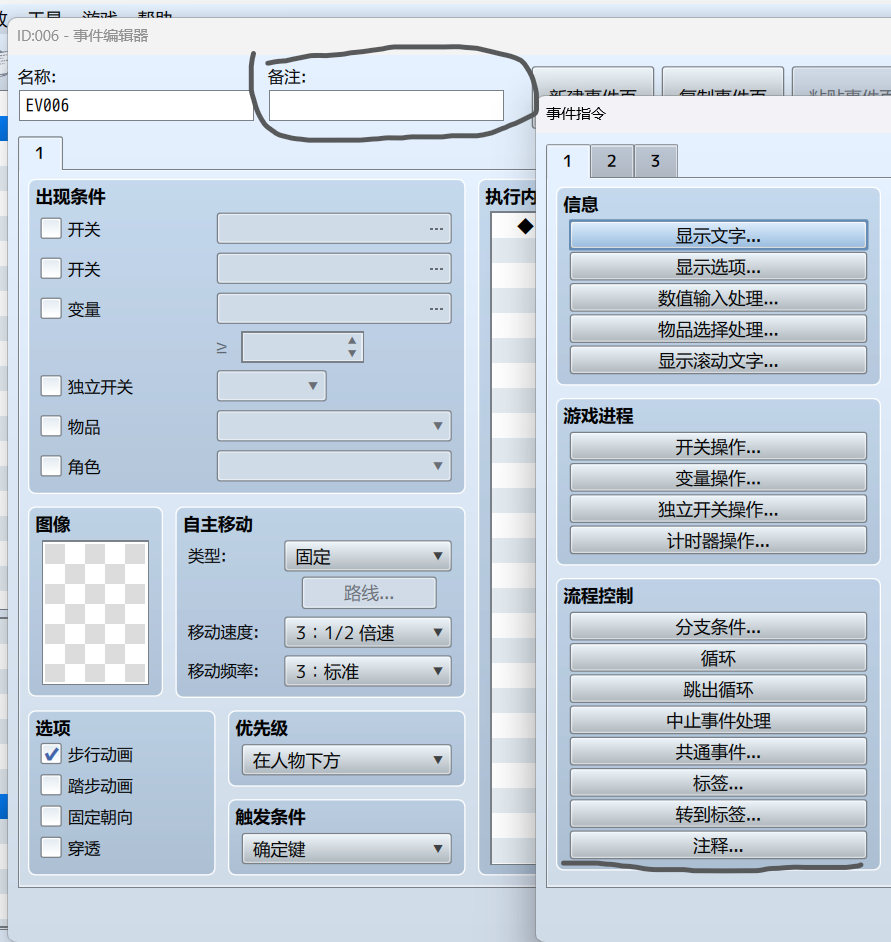
页面备注和事件注释标签是什么?
特点
高级开关和变量
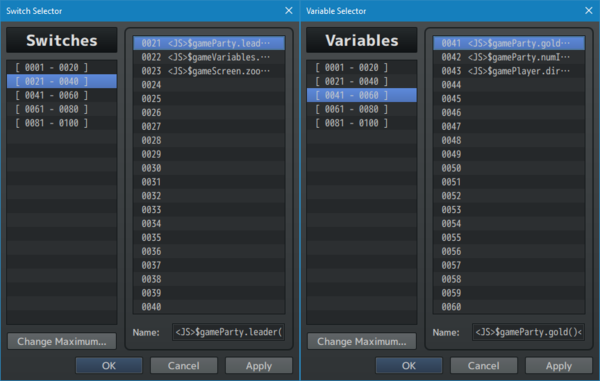
开关和变量现在可以运行 JavaScript 代码并立即返回值。乍一看,这似乎与使用“控制变量”事件命令的“脚本”选项没有区别,但实际上,它可以用来立即设置并行公共事件、事件页面条件、敌方技能条件和敌群页面条件的开关和/或变量条件,而无需创建事件命令。
<JS> 代码 </JS>

- 用于:开关和变量名
- 将 'code' 替换为 JavaScript 代码,用于指定要返回的值。
注意:带标签的 Switch 开关/变量是互斥的。您不能同时使用 <JS>、<Self> 或 <Global> 标签来标记它们。
独立开关和变量

RPG Maker MZ 默认有 4 个独立开关:A、B、C、D。对于某些类型的游戏来说,这远远不够。此插件允许您将普通开关转换为独立开关,从而拥有更多开关。
RPG Maker MZ 默认也不支持独立变量。与开关一样,您可以将普通变量转换为独立变量。
<Self>

- 用于:开关和变量名称
- 将开关/变量转换为自身类型的开关/变量。
之后,只需像在事件页面条件中使用普通的开关和变量一样使用它们即可。如果开关或变量名称中包含 <Self> 标签,则它将使用仅对该事件有效的数据。
注意:带标签的开关/变量彼此互斥。您不能同时使用·<JS>、<Self> 或 <Global> 标签。
如果您需要使用脚本调用来获取独立开关或独立变量的值,可以使用以下脚本调用。
获取独立开关值:
getSelfSwitchValue(mapID, eventID, switchID)
- 将 'mapID' 替换为目标事件所在的地图 ID。
- 将 'eventID' 替换为目标事件的 ID。
- 如果是独立开关,则将 'switchID' 替换为 ID 号(使用 <Self> 标记);如果是 A、B、C 或 D,则替换为用引号括起来的大写字母。
- 这将返回自开关的 true/false 值。
- 示例:getSelfSwitchValue(12, 34, 56)
- 示例:getSelfSwitchValue(12, 34, 'B')

获取独立变量值:
getSelfVariableValue(mapID, eventID, variableID)
- 将 'mapID' 替换为目标事件所在的地图 ID。
- 将 'eventID' 替换为目标事件的 ID。
- 将 'variableID' 替换为自身变量的 ID。
- 这将返回自身变量中存储的任何值。
- 示例:getSelfVariableValue(12, 34, 56)

设置独立开关值:
setSelfSwitchValue(mapID, eventID, switchID, value)
- 将 'mapID' 替换为目标事件所在的地图 ID。
- 将 'eventID' 替换为目标事件的 ID。
- 如果是独立开关,请将“switchID”替换为 ID 号。
如果是 A、B、C 或 D,请用引号括起来的大写字母代替“switchID”。
- 将“value”分别替换为“true”或“false”以表示开启/关闭状态。
请勿使用引号。
- 这将把独立开关的值更改为 true/false。
- 例如:setSelfSwitchValue(12, 34, 56, false)
- 例如:setSelfSwitchValue(12, 34, 'B', true)

设置独立变量值:
setSelfVariableValue(mapID, eventID, variableID, value)
- 将“mapID”替换为目标事件所在的地图 ID。
- 将“eventID”替换为目标事件的 ID。
- 将“variableID”替换为独立变量的 ID 号。
- 将“value”替换为您想要设置的独立变量值。
- 例如:setSelfVariableValue(12, 34, 56, 88888)
地图开关和变量

与独立开关和独立变量类似,地图切换和地图变量是根据玩家当前所在地图保存数据的切换和变量。换句话说,它们是针对地图的独立开关和变量!
RPG Maker MZ 默认情况下不包含这些功能。与独立开关和独立变量类似,您可以使用以下名称标签将普通开关或变量转换为地图开关和地图变量:
<Map>
- 用于:开关和变量名称
- 将开关/变量转换为地图开关/变量。
之后,只需像在事件页面条件中使用普通开关和变量一样使用它们即可。如果开关或变量名称中包含 <Map> 标签,则它将使用仅该地图特有的数据。
注意:带标签的开关/变量彼此互斥。您不能同时使用 <JS>、<Self>、<Map> 或 <Global> 标签。
如果需要使用脚本调用来获取地图开关或地图变量的值,可以使用以下脚本调用:
---

获取地图开关值:
getMapSwitchValue(mapID, switchID)
- 将“mapID”替换为开关所在的地图 ID。
- 将“switchID”替换为要获取数据的开关的 ID 号。
- 例如:getMapSwitchValue(4, 20)

---

获取变量开关值:
getMapVariableValue(mapID, variableID)
- 将“mapID”替换为开关所在的地图 ID。
- 将“variableID”替换为要获取数据的变量的 ID 号。
- 例如:getMapVariableValue(6, 9)

---

设置地图开关值:
setMapSwitchValue(mapID, switchID, value)
- 将“mapID”替换为开关所在的地图 ID。
- 将“switchID”替换为要获取数据的开关的 ID 号。
- 将“value”分别替换为“true”或“false”以表示开关状态(开/关)。
请勿使用引号。
- 例如:setMapSwitchValue(4, 20, true)
- 例如:setMapSwitchValue(6, 9, false)

---

设置地图变量值:
setMapVariableValue(mapID, variableID, value)
- 将“mapID”替换为开关所在的地图 ID。
- 将“variableID”替换为要获取数据的变量的 ID 号。
- 将“value”替换为要设置的地图变量值。
- 例如:setMapVariableValue(6, 9, 420)
  ---
角色精灵文件名标签
对于位于项目 /img/characters/ 文件夹中的文件,如果文件名本身包含特定的“标签”,则会应用特殊属性。这些标签可以组合使用,但也有一些例外。
其中一些是 VisuStella MZ 的新增功能,而另一些则是 MZ 的默认功能。
!filename.png
- 标签:!
- 使该角色的精灵与图块网格对齐,而不是向上移动几个像素。
- 这主要用于门、箱子和地板等元素。
- RPG Maker MZ 默认启用。
$filename.png
- 标签:$
- 使该角色的精灵使用“大字符”格式。
- 主要用于大型怪物等只有 3x4 单元格的精灵图,而不是常规精灵图的 12x8 单元格。
- 不能与 [VS8] 标签同时使用。
- 默认使用 RPG Maker MZ。
filename[Invisible].png
- 标签:[Invisible] 或 [Inv]
- 此角色的精灵图在游戏地图界面上将变为不可见,而其他几乎所有元素仍然可见。
- 此功能适用于希望使用精灵标签来表示诸如自动运行和并行事件等情况的用户。
filename[VS8].png
- 标签:[VS8]
- 将此精灵图转换为 VisuStella 风格的 8 方向精灵图。
- 请参阅以下部分。
- 不能与 $ 标签同时使用。
VisuStella 风格的八向精灵图

此插件支持 VisuStella 风格的八向精灵图,也称为 VS8。VS8 精灵图支持行走帧、冲刺帧、搬运帧和表情动作。
要将精灵图指定为 VS8,只需在文件名后添加 [VS8].png。例如,Actor1.png 将变为 Actor1_[VS8].png。
VS8 精灵图的格式如下。以下每个块包含 3 帧。
Walk Down    Walk DL     Dash Down   Dash DL
Walk Left    Walk DR     Dash Left   Dash DR
Walk Right   Walk UL     Dash Right  Dash UL
Walk Up      Walk UR     Dash Up     Dash UR

Carry Down   Carry DL    Ladder      Emotes 3
Carry Left   Carry DR    Rope        Emotes 4
Carry Right  Carry UL    Emotes 1    Emotes 5
Carry Up     Carry UR    Emotes 2    Emotes 6

翻译出来乱七八糟的,还是放原文给你们自己看好了,实在看不懂也可以在范例工程找到示例
**注意:**跳跃时,大多数情况下会使用“搬运”帧,这是一个双臂举过头顶的精灵姿势,图标显示“搬运”状态。
以下是各个表情组的分组,从左到右。
表情 1:物品、哼、胜利
表情 2:受伤、跪下、倒地
表情 3:!、?、音符
表情 4:心形、愤怒、汗水
表情 5:蜘蛛网、……、灯泡
表情 6:睡眠0、睡眠1、睡眠2
加权随机移动

创建要放置在地图上的事件时,您可以确定事件的自主移动类型。选择“随机”后,事件将在地图上随机移动。
然而,由于 RPG Maker MZ 默认代码中“随机”移动的运作方式,事件更容易撞墙,然后沿着墙壁绕着地图边缘转圈,这对于在地图上停留足够长时间的玩家来说非常不自然。
这时就需要“加权随机移动”功能了。它改变了随机移动的行为,使得事件距离越远,就越有可能退回到它的“初始”位置(即加载地图时生成的位置)。这样可以避免一个家庭主妇 NPC 突然跑到同一张城镇地图上的军队训练场中央。
事件会根据权重值的大小更靠近它的初始位置。有很多方法可以调整权重值。
插件参数 > 移动 > 事件移动 > 随机移动权重
此插件参数设置允许您为所有具有“随机”自主移动的事件设置默认权重。默认值为 0.10,旨在赋予事件一定的自由度。
数值越小,事件的移动自由度越大。数值越大,事件的移动距离就越短。
将此值更改为 0 可禁用此功能。
您可以使用事件的注释标签,为每个事件单独自定义此设置。
<Random Move Weight: x>

- 用于:事件注释标签和事件页面注释标签
- 如果将此标签用于具有随机自主移动的事件,则事件将更靠近其初始位置(即在地图上生成时的位置)。事件靠近初始位置的程度取决于权重值“x”。
- 将“x”替换为 0 到 1 之间的数字。数字越接近 0,事件在随机移动时就越自由;数字越接近 1,事件就越倾向于停留在其初始位置附近。

<True Random Move>

- 用于:事件注释标签和事件页面注释标签
- 如果此标签用于具有随机类型自主移动的事件,则该事件将忽略加权随机移动的影响。
注释标签
地图注释标签
以下注释标签仅用于地图。虽然其中一些选项也可在插件参数中使用,但部分注释标签的用途也扩展到了标记这些注释标签的特定地图。
---

<Diagonal Movement: On>
<Diagonal Movement: Off>

- 地图标签
- 为该地图开启/关闭对角线移动,默认使用插件设置

- Used for: Map Notetags
- Turns on/off diagonal movement for those maps.
- If notetag isn't present, use Plugin Parameter setting.
---

<type Allow Region: x>
<type Allow Region: x, x, x>

<type Forbid Region: x>
<type Forbid Region: x, x, x>

<type Dock Region: x>
<type Dock Region: x, x, x>

- 地图标签
- 将type替换为'All', 'Walk', 'Player', 'Event', 'Vehicle', 'Boat', 'Ship', 'Airship'.
- 'Allow'标签允许所有类型通过,'Forbid'标签禁止所有类型,'Dock'允许交通工具再次停泊,小船和大船必须面向区域的方向,飞艇必须在对应地形顶部降落

- Used for: Map Notetags
- Replace 'type' with 'All', 'Walk', 'Player', 'Event', 'Vehicle', 'Boat',
  'Ship', or 'Airship'.
- 'Allow' notetag variants allow that type to pass through them no matter
  what other passability settings are in place.
- 'Forbid' notetag variants forbid that type from passing through at all.
- 'Dock' notetag variants allow vehicles to dock there. Boats and ships must
  face the region direction while airships must land directly on top.
---
<Map Load Common Event: x>
<Map Load Common Events: x, x, x>

- 地图标签
- 该地图加载时,运行特定的公共事件,如果传送到同一地图的不同位置则不会再次触发
- x替换为公共事件的id

- Used for: Map Notetags
- When this map is loaded, run the specified Common Events once available.
  - Does NOT trigger if you transfer to a different part of the same map.
- Replace 'x' with a number representing the ID of the Common Event you wish
  to reserve and run once ready.
---
<Save Event Locations>

- 地图标签
- 保存该地图上的所有事件的位置,如果移动到另一个地图再回来,事件就会保持在上次的位置

- Used for: Maps Notetags
- Saves the locations of all events on the map so that when you return to
  that map at a later point, the events will be in the position they were
  last in.
---
<Hide Player>
<Show Player>

- 地图标签
- 强制隐藏或显示玩家的图像,这样就不用手动设置玩家图像在特定地图的透明状态
- 该设定的优先级高于其他事件命令
- 玩家图像被隐藏时,玩家的跟随队列也一样
- 玩家图像可见时,玩家的跟随队列依赖自身设置
- 这两个标签互斥

- Used for: Map Notetags
- Forcefully hides or shows the player sprite. This is so you don't need to
  manually turn the setting on/off each time you enter a specific map.
- These settings will take priority over the event commands.
- If the player sprite is hidden, so are the player's followers.
- If the player sprite is visible, the player's followers will still depend
  on their settings.
- These notetags are mutually exclusive from each other.
---
<Hide Followers>
<Show Followers>

- 地图标签
- 强制隐藏或显示玩家的跟随队列
- 该设置的优先级高于其他事件命令
- 这两个标签互斥

- Used for: Map Notetags
- Forcefully hides or shows the player's followers. This is so you don't
  need to manually turn them on/off each time you enter a specific map.
- These settings will take priority over the event commands.
- These notetags are mutually exclusive from each other.
---
页面注释标签
以下标签必须添加到事件、敌群和公共事件的页面中才能生效!
---
<Page Conditions>
  conditions
  conditions
  conditions
</Page Conditions>

- 地图、敌群、公共事件注释标签
- 创建自定义页面条件,利用条件分歧事件命令来查看是否满足其他页面条件。

- Used for: Map Event Page, Troop Page, and Common Event Page Comment Tags
- This allows you to create custom page conditions that utilize the
  Conditional Branch event command to see if the additional page conditions
  are met.
---
<Conditions Met>

- 地图、敌群、公共事件注释标签
若在<Page Conditions> 和 </Page Conditions>注释标签之间使用,在执行到这一部分事件命令列表,就判定为满足了所需的条件

- Used for: Map Event Page, Troop Page, and Common Event Page Comment Tags
- If used between the <Page Conditions> and </Page Conditions> comment tag,
  upon reaching this part of event command list, the custom page conditions
  will be considered met.
---

例子:

◆注释:<Page Conditions>
◆条件分歧:Reid 已装备 Potion Sword
  ◆注释:If Reid 已装备 the Potion Sword
:       :<Condition Met>
  ◆
:End
◆注释:</Page Conditions>

如果里德的这一武器已装备,那么额外的自定义页面条件就会满足,该事件页面就会被激活

如果此为敌群的条件,敌群页事件就会被激活

如果是公共事件,就会作为一个并行公共事件激活

If Reid has the "Potion Sword" weapon equipped, then the additional custom
page conditions are met and the event page will be present/active.

If this is a troop condition, the troop page event will activate.

If this is a common event, there will be a parallel common event active.
---
事件和事件页面标签
以下注释标签有对应的事件注释标签(少数例外)。如果标签用于事件备注,它将持续影响该事件。如果使用注释,它只会影响该注释所在的页面。
---

<Activation Region: x>
<Activation Regions: x,x,x>

- 事件、事件页面注释标签
- 只要玩家站在指定地形标志的方格内,就可以远程激活此事件
- x替换为对应的地形标志id
 - 确定键:玩家必须在地形中按下确定键
 - 玩家/事件触碰:玩家必须步行进入对应地形
 - 自动执行/并行处理:玩家在地形之中
- 如果在备注中使用该标签,所有事件页应用这一效果
- 如果在注释中使用,这一效果只会在当前事件页面中触发
- 注意:不能与其他的激活标签使用

- Used for: Event Notetags and Event Page Comment Tags
- Allows this event to be remotely activated as long as the player is
  standing within a tile marked by a designated region.
- Replace 'x' with the regions you wish to remotely activate this event in.
  - Action Button: Player must press OK while being in the region.
  - Player/Event Touch: Player must step onto the region.
  - Autorun/Parallel: Player be in the region.
- If this is placed in a notetag, the effect will be present across
  all event pages used.
- If this is placed inside a page's comment, the effect will only occur
  if that event page is currently active.
- NOTE: This cannot be used with any other activation tags.
---

<Activation Square: x>
<Activation Circle: x>
<Activation Delta: x>
<Activation Row: x>
<Activation Column: x>

- 事件、事件页面注释标签
- 当玩家站在某一形状的范围内,将会远程激活该事件
- x替换为代表图块范围的数字
 - 方形,圆形,菱形,行,列
- 如果在备注中使用该标签,所有事件页应用这一效果
- 如果在注释中使用,这一效果只会在当前事件页面中触发
- 注意:不能与其他的激活标签使用

- Used for: Event Notetags and Event Page Comment Tags
- Allows this event to be remotely activated as long as the player is
  within range of its activation type.
- Replace 'x' with a number stating the range in tiles.
  - Square: A square-shaped range with the event at the center.
  - Circle: A circle-shaped range with the event at the center.
  - Delta: A diamond-shaped range with the event at the center.
  - Row: Spans horizontally across the map. 'x' expands up and down.
  - Column: Spans vertically across the map. 'x' expands left and right.
- If this is placed in a notetag, the effect will be present across
  all event pages used.
- If this is placed inside a page's comment, the effect will only occur
  if that event page is currently active.
- NOTE: This cannot be used with any other activation tags.
---
<Always Update Movement>

- 地图、事件、事件页面注释标签
- 事件通常在屏幕范围内才会自行移动,如果使用该标签,这个事件会一直更新移动路线
- 如果在备注中使用该标签,所有事件页应用这一效果
- 如果在注释中使用,这一效果只会在当前事件页面中触发

- Used for: Event Notetags and Event Page Comment Tags
- Events normally have to be within screen range for them to update their
  self movement. If this tag is present, the event is always updating.
- If this is placed in a notetag, the effect will be present across
  all event pages used.
- If this is placed inside a page's comment, the effect will only occur
  if that event page is currently active.
---

<Click Trigger>

- 事件备注、事件页面注释标签
- 允许该事件通过鼠标点击来激活
- 如果在备注中使用该标签,所有事件页应用这一效果
- 如果在注释中使用,这一效果只会在当前事件页面中触发

- Used for: Event Notetags and Event Page Comment Tags
- Allows this event to activate upon being clicked on with the mouse.
- If this is placed in a notetag, the effect will be present across
  all event pages used.
- If this is placed inside a page's comment, the effect will only occur
  if that event page is currently active.
---
<Copy Event: Map x, Event y>
<Copy Event: x, y>

<Copy Event: template>

- 仅事件备注标签
- 让该事件从另一个已存在的地图中的另一个事件复制所有的事件设置(这个地图在插件参数中进行设置,Event Template Setting -》 Preload Maps)
- x替换为进行复制的事件的地图ID,如果为0,则代表当前地图
- y替换为复制的事件的Id
- template替换为插件参数 => Event Template Settings => Event Template List 设置的模板
- 如果在注释中使用,这一效果只会在当前事件页面中触发

- Used for: Event Notetags ONLY
- Makes this event copy all of the event settings from a different event
  that can be found on a different map (as long as that map is registered
  inside of Plugin Parameters => Event Template Settings => Preloaded Maps).
- Replace 'x' with a number representing the copied event's Map ID.
  - If '0' is used for the Map ID, reference the current map.
- Replace 'y' with a number representing the copied event's Event ID.
- For the 'template' variant, replace 'template' with the name of the
  template made in Plugin Parameters => Event Template Settings =>
  Event Template List.
- If this is placed in a notetag, the effect will be present across
  all event pages used.
---
<Custom Z: x>

- Used for: Event Notetags and Event Page Comment Tags
- Replace 'x' with a number value to determine the event sprite's Z value
  relative to the tilemap.
- For reference from rmmz_core.js:
  - 0 : Lower tiles
  - 1 : Lower characters
  - 3 : Normal characters
  - 4 : Upper tiles
  - 5 : Upper characters
  - 6 : Airship shadow
  - 7 : Balloon
  - 8 : Animation
  - 9 : Destination
- You can use numbers below 0 and above 9.
  - Values under 0 go below the tilemap.
  - Values above 9 go above everything else on the tilemap.
  - These values do NOT go below or above other screen objects that are
    NOT attached to the tilemap layer such as parallaxes or weather or
    windows because that's simply not how z-axis work with sprite layers.
---
<Encounter Half Square: x>
<Encounter Half Circle: x>
<Encounter Half Delta: x>
<Encounter Half Row: x>
<Encounter Half Column: x>

- Used for: Event Notetags and Event Page Comment Tags
- If the player is within the 'x' area effect of this event, the random
  encounter rate will be halved.
- Replace 'x' with a number stating the range in tiles.
  - Square: A square-shaped range with the event at the center.
  - Circle: A circle-shaped range with the event at the center.
  - Delta: A diamond-shaped range with the event at the center.
  - Row: Spans horizontally across the map. 'x' expands up and down.
  - Column: Spans vertically across the map. 'x' expands left and right.
- If this is placed in a notetag, the effect will be present across
  all event pages used.
- If this is placed inside a page's comment, the effect will only occur
  if that event page is currently active.

Script Call Check:

  $isTileEncounterHalf(x, y)

- This can be used to check if a certain map tile (x, y) has an encounter
  rate halving effect on it.
- Returns a boolean (true or false) when used.
---
<Encounter None Square: x>
<Encounter None Circle: x>
<Encounter None Delta: x>
<Encounter None Row: x>
<Encounter None Column: x>

- Used for: Event Notetags and Event Page Comment Tags
- If the player is within the 'x' area effect of this event, the random
  encounter rate will be suppressed completely.
- Replace 'x' with a number stating the range in tiles.
  - Square: A square-shaped range with the event at the center.
  - Circle: A circle-shaped range with the event at the center.
  - Delta: A diamond-shaped range with the event at the center.
  - Row: Spans horizontally across the map. 'x' expands up and down.
  - Column: Spans vertically across the map. 'x' expands left and right.
- If this is placed in a notetag, the effect will be present across
  all event pages used.
- If this is placed inside a page's comment, the effect will only occur
  if that event page is currently active.

Script Call Check:

  $isTileEncounterNone(x, y)

- This can be used to check if a certain map tile (x, y) has an encounter
  rate suppression effect on it.
- Returns a boolean (true or false) when used.
---
<Erase if Encounter Half>
<Erase if Encounter None>

- Used for: Event Notetags ONLY
- Automatically erase this event if the player's party has an encounter half
  or encounter none effect, or if the event has spawned in an encounter half
  or encounter none area.
- This check only occurs in two situations: when the map is first loaded
  after being teleported into or when the player leaves a menu and returns
  back to the map.
- Events that have been erased due to this effect will NOT return even if
  the encounter half/none effect is removed while the player is still on the
  map. The event will return if the player exits the map and comes back.
---
<Exit Reset Self Data>

- Used for: Event Notetags ONLY
- When the player leaves the current map, all Self Switches and Self
  Variables related to this event will be reset.
---

<Hitbox Left: x>
<Hitbox Right: x>
<Hitbox Up: x>
<Hitbox Down: x>

- Used for: Event Notetags and Event Page Comment Tags
- Replace 'x' with a number to extend the hitbox of the event by that many
  tiles towards the listed direction.
- Use multiples of this notetag to extend them to different directions.
- If this is placed in a notetag, the effect will be present across
  all event pages used.
- If this is placed inside a page's comment, the effect will only occur
  if that event page is currently active.
---

<Icon: x>

- Used for: Event Notetags and Event Page Comment Tags
- Replace 'x' with the Icon ID you wish to put above this event.
- This will not override any Icons designated to the ID through a
  Plugin Command.
- If this is placed in a notetag, the effect will be present across
  all event pages used.
- If this is placed inside a page's comment, the effect will only occur
  if that event page is currently active.
---
<Icon Buffer X: +x>
<Icon Buffer X: -x>

<Icon Buffer Y: +x>
<Icon Buffer Y: -x>

<Icon Buffer: +x, +y>
<Icon Buffer: -x, -y>

- Used for: Event Notetags and Event Page Comment Tags
- Allows you to adjust the positions of the icon on the envent by buffers.
- Replace 'x' and 'y' with the values to adjust the position buffers by.
- If this is placed in a notetag, the effect will be present across
  all event pages used.
- If this is placed inside a page's comment, the effect will only occur
  if that event page is currently active.
---

<Label: text>

- Used for: Event Notetags and Event Page Comment Tags
- Puts a label over the event's head displaying 'text'.
- Text codes can be used.
  - If text codes are used, avoid text codes that use < and > wrappers.
- If this is placed in a notetag, the effect will be present across
  all event pages used.
- If this is placed inside a page's comment, the effect will only occur
  if that event page is currently active.
---
<Label>
text
text
</Label>

- Used for: Event Notetags and Event Page Comment Tags
- Puts a label over the event's head displaying 'text'.
- This can display multiple lines.
- Text codes can be used.
  - You can use text codes with < and > wrappers.
- If this is placed in a notetag, the effect will be present across
  all event pages used.
- If this is placed inside a page's comment, the effect will only occur
  if that event page is currently active.
---
<Label Range: x>

- Used for: Event Notetags and Event Page Comment Tags
- Sets a range requirement for the player to be in order for the event's
  label to appear.
- Replace 'x' with a number value depicting the range in tiles.
- If this is placed in a notetag, the effect will be present across
  all event pages used.
- If this is placed inside a page's comment, the effect will only occur
  if that event page is currently active.
---
<Label Range Type: Square>
<Label Range Type: Circle>
<Label Range Type: Diamond>

- Used for: Event Notetags and Event Page Comment Tags
- Sets a range type for the label to appear visible for.
  - Square: A square-shaped range with the event at the center.
  - Circle: A circle-shaped range with the event at the center.
  - Diamond: A diamond-shaped range with the event at the center.
- If this is placed in a notetag, the effect will be present across
  all event pages used.
- If this is placed inside a page's comment, the effect will only occur
  if that event page is currently active.
- If this tag is not used, refer to the default plugin parameter settings.
---
<Label Offset X: +x>
<Label Offset X: -x>

<Label Offset Y: +x>
<Label Offset Y: -x>

<Label Offset: +x, +y>
<Label Offset: -x, -y>

- Used for: Event Notetags and Event Page Comment Tags
- Allows you to adjust the positions of the label on the envent by offsets.
- Replace 'x' and 'y' with the values to adjust the position offsets by.
- If this is placed in a notetag, the effect will be present across
  all event pages used.
- If this is placed inside a page's comment, the effect will only occur
  if that event page is currently active.
---

<Label Hue Shift: +x>
<Label Hue Shift: -x>

- Used for: Event Notetags and Event Page Comment Tags
- Changes the hue of the event label by +x or -x every frame.
  - Keep in mind that since this is changing hue, this will appear to have
    no effect if you are using black and white labels.
  - Use labels with text codes that add color to them like '\C[4]text'
- This only works with the sprite version of event labels and does not work
  with the legacy version.
---
<Location X: +x>
<Location X: -x>

<Location Y: +x>
<Location Y: -x>

<Location: +x, +y>
<Location: +x, -y>
<Location: -x, +y>
<Location: -x, -y>

- Used for: Event Notetags and Event Page Comment Tags
- Adjusts the initial location of this event by +x and +y (or -x and -y).
- This allows you to stack events on top of each other or even move them to
  various places of the map.
- Replace 'x' with a number that represents the horizontal tiles to adjust
  the initial starting location by.
- Replace 'y' with a number that represents the vertical tiles to adjust
  the initial starting location by.
---

<Mirror Sprite>

- Used for: Event Notetags and Event Page Comment Tags
- The event sprite's visual appearance is mirrored.
---

<Move Only Region: x>
<Move Only Regions: x,x,x>

- Used for: Event Notetags and Event Page Comment Tags
- Sets the move range of this event to only the region(s) marked by the
  notetag(s) or comment tag(s).
- This will bypass terrain passability.
- This will not bypass event collision.
- If this is placed in a notetag, the effect will be present across
  all event pages used.
- If this is placed inside a page's comment, the effect will only occur
  if that event page is currently active.
---

<Move Synch Target: Player>

<Move Synch Target: Event x>

- Used for: Event Notetags and Event Page Comment Tags
- Synchronizes the movement of this event with a target (either the player
  or another event). This event will only move whenever the synchronized
  target moves.
- For 'Event x' variant, replace 'x' with the ID of the event to synch to.
- If this is placed in a notetag, the effect will be present across
  all event pages used.
- If this is placed inside a page's comment, the effect will only occur
  if that event page is currently active.
---
<Move Synch Type: Random>
<Move Synch Type: Approach>
<Move Synch Type: Away>
<Move Synch Type: Custom>

<Move Synch Type: Mimic>
<Move Synch Type: Reverse Mimic>

<Move Synch Type: Mirror Horizontal>
<Move Synch Type: Mirror Vertical>

- Used for: Event Notetags and Event Page Comment Tags
- Choose the type of movement the event will have if it is synchronized to
  a target.
  - Random: Move to a random position.
  - Approach: Approaches target.
  - Away: Flees from target.
  - Custom: Follows a custom move route.
  - Mimic: Imitates the target's movement style.
  - Reverse Mimic: Does the opposite of the target's movement.
  - Mirror Horizontal: Moves as if a mirror is placed horizontally.
  - Mirror Vertical: Moves as if a mirror is placed vertically.
- If this is placed in a notetag, the effect will be present across
  all event pages used.
- If this is placed inside a page's comment, the effect will only occur
  if that event page is currently active.
---
<Move Synch Delay: x>

- Used for: Event Notetags and Event Page Comment Tags
- If this tag is present, the event will wait a bit after each move before
  moving again.
- Replace 'x' with the number of movement instances in between.
- If this is placed in a notetag, the effect will be present across
  all event pages used.
- If this is placed inside a page's comment, the effect will only occur
  if that event page is currently active.
---
<Move Synch Distance Opacity: x>

- Used for: Event Notetags and Event Page Comment Tags
- Changes the opacity of the event based on the distance between it and its
  move synched target. Closer means more opaque. Further away means more
  transparent.
- Replace 'x' with a number representing the opacity change per pixel
  distance away. 'x' can use decimal values like 1.05 and 1.5.
---

<Picture Filename: filename>

- Used for: Event Notetags and Event Page Comment Tags
- Applies a picture graphic from the /img/pictures/ folder of your project.
- This graphic will be on top of the character sprite but below the event
  icon sprite.
  - The picture priority will be the same as the event's priority.
  - If it is "below characters", the player can walk on top of it.
  - If it is "above characters", the player will behind it.
  - If it is "same as characters", the priority will be based on the
    current relative Y position. This also means, if the picture is big
    enough, it can clip into the top of tree tiles and such.
- Replace 'filename' with a filename from the game project's /img/pictures/
  folder. This is case sensitive. Do NOT include the file extension.
- If this is placed in a notetag, the effect will be present across
  all event pages used.
- If this is placed inside a page's comment, the effect will only occur
  if that event page is currently active.
---
<Picture Type: Enemy>
<Picture Type: SV Enemy>

- Used for: Event Notetags and Event Page Comment Tags
- Used with <Picture Filename: filename> notetag.
- Will use /img/enemies/ or /img/sv_enemies/ instead of /img/pictures/ to
  grab a picture graphic from.
- Other picture graphic sprite related notetags will apply as normal.
---
<Picture Max Size: x>
<Picture Scale: y%>

- Used for: Event Notetags and Event Page Comment Tags
- Used with <Picture Filename: filename> notetag.
- If the "Max Size" or "Scale" supplementary notetags are used, the picture
  graphic will be scaled proportionally to fit either the exact pixel size
  for "Max Size" or the "Scale" ratio.
  - Both the "Max Size" and "Scale" notetags require the "Filename" notetag.
- Replace 'x' with a number value representing the exact pixel size for the
  "Max Size" notetag.
- Replace 'y' with a number value representing the scale on which to shrink
  or enlarge the picture. 100% is normal size. 50% is half size. 200% is
  double size.
- If this is placed in a notetag, the effect will be present across
  all event pages used.
- If this is placed inside a page's comment, the effect will only occur
  if that event page is currently active.
---
<Picture Offset X: +x>
<Picture Offset X: -x>

<Picture Offset Y: +x>
<Picture Offset Y: -x>

<Picture Offset: +x, +y>
<Picture Offset: -x, -y>

- Used for: Event Notetags and Event Page Comment Tags
- Used with <Picture Filename: filename> notetag.
- Offsets the X and Y position of the event picture relative to the event
  sprite's own position.
- Replace 'x' and 'y' with numbers indicating the offset in pixels.
- If this is placed in a notetag, the effect will be present across
  all event pages used.
- If this is placed inside a page's comment, the effect will only occur
  if that event page is currently active.
---
<Picture Wait Frames: x>

- Used for: Event Notetags and Event Page Comment Tags
- Used with <Picture Filename: filename> notetag.
- Requires VisuMZ_4_AnimatedPictures!
- "Wait Frames" is used with VisuMZ's Animated Pictures plugin. This
  determines the delay inbetween frame changes.
- Replace 'x' with a number representing the amount of frames to wait
  inbetween frame changes.
- If this is placed in a notetag, the effect will be present across
  all event pages used.
- If this is placed inside a page's comment, the effect will only occur
  if that event page is currently active.
---
<Playtest>

- Used for: Event Notetags.
- This does NOT work when it's in the Event Page Comment Tags.
- If this notetag is found in the event's notebox (NOT comments), then the
  event will only appear during a playtest session. It will not appear in a
  deployed game where the playtest flag is not on.
---

<Random Move Weight: x>

- Used for: Event Notetags and Event Page Comment Tags
- If this tag is used on an event with random-type autonomous movement, then
  the event will stick closer to their home location (where they are located
  upon spawning on the map). How close they stick to their home location
  will depend on the weighted 'x' value.
- Replace 'x' with a number between 0 and 1. Numbers closer to 0 give the
  event more freedom when moving randomly while numbers closer to 1 cause
  the event to stick closer to their home position.
---
<True Random Move>

- Used for: Event Notetags and Event Page Comment Tags
- If this tag is used on an event with random-type autonomous movement, then
  that event will ignore the effects of weighted randomized movement.
---
<Save Event Location>

- Used for: Event Notetags ONLY
- Saves the locations of the event on the map so that when you return to
  that map at a later point, the event will be in the position it was
  last in.
---

<Hide Shadow>
- Used for: Event Notetags and Event Page Comment Tags
- Hides the shadow for the event.
- If this is placed in a notetag, the effect will be present across
  all event pages used.
- If this is placed inside a page's comment, the effect will only occur
  if that event page is currently active.
---

<Scale: x%>

<Scale X: x%>
<Scale Y: y%>

- Used for: Event Notetags and Event Page Comment Tags
- Changes the scale of the sprite to the designated size.
- For <Scale: x%> variant: replace 'x' with a number representing the
  scaling overall percentage to be used.
- For <Scale X: x%> variant, replace 'x' with a number representing the x
  factor for the horizontal scaling percentage to be used.
- For <Scale Y: y%> variant, replace 'y' with a number representing the y
  factor for the vertical scaling percentage to be used.
- If this is placed in a notetag, the effect will be present across
  all event pages used.
- If this is placed inside a page's comment, the effect will only occur
  if that event page is currently active.
---
<Shadow Filename: filename>

- Used for: Event Notetags and Event Page Comment Tags
- Replaces the shadow graphic used with 'filename' found in the
  img/system/ project folder.
- If this is placed in a notetag, the effect will be present across
  all event pages used.
- If this is placed inside a page's comment, the effect will only occur
  if that event page is currently active.
---
<Sprite Offset X: +x>
<Sprite Offset X: -x>

<Sprite Offset Y: +x>
<Sprite Offset Y: -x>

<Sprite Offset: +x, +y>
<Sprite Offset: -x, -y>

- Used for: Event Notetags and Event Page Comment Tags
- Changes how much the event's sprite is visibly offset by.
- Replace 'x' and 'y' with numbers indicating the offset in pixels.
- If this is placed in a notetag, the effect will be present across
  all event pages used.
- If this is placed inside a page's comment, the effect will only occur
  if that event page is currently active.
---
<Step Pattern: Left to Right>
<Step Pattern: Right to Left>

<Step Pattern: Spin Clockwise>
<Step Pattern: Spin CW>

<Step Pattern: Spin CounterClockwise>
<Step Pattern: Spin CCW>
<Step Pattern: Spin AntiClockwise>
<Step Pattern: Spin ACW>

- Used for: Event Notetags and Event Page Comment Tags
- Changes the way the event animates if a tag is present.
  - Left to Right: Makes the event sprite's step behavior go from frame 0 to
    1 to 2, then back to 0 instead of looping backward.
  - Right to Left: Makes the event sprite's step behavior go from frame 2 to
    1 to 0, then back to 2 instead of looping forward.
  - Spin Clockwise: Makes the event sprite's step behavior spin CW.
  - Spin CounterClockwise: Makes the event sprite's step behavior spin CCW.
- If this is placed in a notetag, the effect will be present across
  all event pages used.
- If this is placed inside a page's comment, the effect will only occur
  if that event page is currently active.
---

<Tile Expand Up: x>
<Tile Expand Down: x>
<Tile Expand Left: x>
<Tile Expand Right: x>

- Used for: Event Notetags and Event Page Comment Tags
- Used for events with tile graphics. Expands the graphic up, down, left, or
  right from the spritesheet.
  - This does NOT expand the hitbox.
- The graphic will be anchored to the tile it's expanded from. This means
  even if you expanded downward, the actual event's position will still be
  the current event's X/Y coordinates. It's just grown more vertically and
  is still centered horizontally.
- This is primarily used to save on having to use too many events for tiles
  that expanded past 1x1 tile sizes.
---